
Getting started with digital art shouldn’t mean draining your savings. The right budget tablet gives you pressure-sensitive pen control that a mouse simply can’t match, whether you’re sketching at a coffee shop, annotating lecture notes, or editing photos after work. The catch is that the affordable category is crowded, and the differences between a $40 pad and a $250 one aren’t always obvious from a spec sheet. This guide breaks down ten options across three formats: screenless pen tablets, pen displays with built-in screens, and standalone Android devices, so you can match the tool to how you actually create.
The Shortlist At A Glance
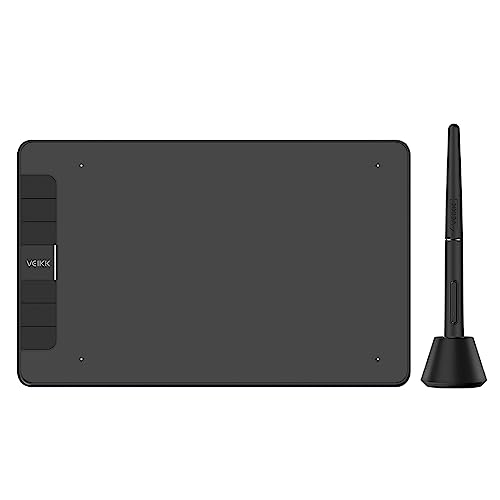
VEIKK VK640 6×4 Drawing Tablet

UGEE UE16 15.4″ Pen Display Tablet

UGEE UE12 11.6″ Pen Display Tablet

Wacom MovinkPad 11 with Pro Pen 3

XPPen StarG640 6×4 Graphics Tablet

Wacom Intuos Small Wired Tablet

HUION Inspiroy H1060P 10×6.25 Tablet

UGEE M708 10×6 Drawing Tablet

XPPen Deco 01 V3 10×6 Tablet

HUION Inspiroy H640P 6×4 Tablet
More Details On Our Top Picks
The VEIKK VK640 keeps things deliberately small: a 6-by-4-inch active area wrapped in a slim frame that slides into a laptop sleeve without complaint. Six programmable keys sit along the top edge, and you can remap them per application in the driver, which matters once your workflow spans more than one program.
For OSU rhythm gaming or quick annotation during video calls, that footprint is an advantage rather than a compromise. The battery-free stylus means nothing to charge before a session starts.
Strong Points
- Six remappable shortcut keys speed up repetitive actions in drawing apps
- Battery-free pen never needs charging, so sessions start instantly
- Small footprint suits cramped desks and travel bags alike
Things To Consider
- The 6×4 surface can feel restrictive for full-arm sketching compared with larger pads like the HUION H1060P later in this list
- Owners commonly report spending some time in the driver software to get key mappings dialed in
Who It Suits Best
Students and casual artists who want a low-cost entry point and mostly draw with wrist movements rather than whole-arm strokes.
Where A Sibling Pick Shines
Anyone wanting more room to move should look at the UGEE M708’s 10×6-inch surface instead.
A pen display puts the image under your pen instead of beside it, and the UGEE UE16 does this at 15.4 inches, which is genuinely generous territory for this price bracket. Its panel covers 143% of the sRGB gamut, meaning colors render wider and richer than standard displays, and you can switch between sRGB, Adobe RGB, DCI-P3, and monochrome modes depending on the job.
Full lamination bonds the glass to the screen, cutting parallax so your line lands where the cursor sits. Eight hot keys plus a dial-style control give your left hand real work to do while the right one draws.
What We Like
- 143% sRGB coverage makes color work far more trustworthy than basic panels
- Full-laminated screen reduces the gap between pen tip and pixel
- 8+1 hot-key layout keeps tools within thumb’s reach
- Works with Windows, Mac, and Android devices
Worth Noting
- A 15.4-inch slab needs permanent desk real estate, unlike the pocketable VEIKK VK640
- Some owners mention calibrating the pen alignment after setup to get edge accuracy right
At A Glance
Made For
Intermediate illustrators doing client-ready color work who have outgrown small screenless pads.
Consider Something Else When
Tighter budgets or smaller desks pair better with the UGEE UE12 below.
Think of the UE12 as the UE16’s younger sibling: same full-lamination approach and hot-key philosophy, scaled down to an 11.6-inch FHD panel. Resolution lands at 1920×1080, which stays crisp at this size, and the anti-glare coating helps under overhead lighting that would otherwise wash out darker artwork.
Color coverage reaches 124% of sRGB with switchable sRGB, Adobe RGB, and DCI-P3 modes. For most hobbyist illustration, that headroom is plenty, though professionals matching print proofs may prefer the wider gamut of its bigger sibling.
Highlights
- Full-laminated, zero-parallax screen makes lines land precisely
- Anti-glare finish stays readable in bright rooms
- Eight shortcut keys support app-specific mappings
- Cross-platform with Windows, Mac, and Android
Trade Offs
- 124% sRGB trails the UE16’s 143% for demanding color grading
- An external cable connection means one more thing to manage on a cluttered desk
Right Fit For
Beginners buying their first pen display who want screen-direct drawing without the largest footprint or price tag.
Not Your Match When
Artists chasing maximum canvas size should step up to the UGEE UE16 reviewed above.
Everything else on this list needs a computer. The MovinkPad 11 doesn’t: it’s a standalone Android 14 tablet with 8 GB of memory and 128 GB of storage, running Wacom’s Canvas app out of the box alongside bundled CLIP STUDIO PAINT DEBUT access and trials of other art apps.
The included Pro Pen 3 uses a slim barrel and never needs charging, and tapping and holding it on the screen launches Canvas immediately. On a train, in a waiting room, anywhere an idea strikes, this thing just works. That independence is the whole point.
Upsides
- No computer required, true portable creation
- 8 GB RAM and 128 GB storage handle layered files comfortably
- Battery-free Pro Pen 3 with instant-launch gesture
- Software bundle gets you drawing on day one
Minor Gripes
- Android app ecosystem still trails desktop software for heavy professional pipelines
- Costs noticeably more than screenless pads, so it’s an investment rather than an impulse buy
Quick Facts
Who Will Love This
Commuting artists and travelers who sketch away from a desk and value freedom over raw desktop power.
Look Elsewhere When
Desk-bound beginners on tight budgets will find better value in the XPPen StarG640 coming up next.
The StarG640 is about as simple as pen tablets get, and that simplicity is its strength. There are no shortcut keys to configure, no menus to learn: plug it into a Mac, Windows machine, or Chromebook, install the driver, and start writing or drawing.
Teachers running online lessons use it to annotate slides, remote workers sign documents with it, and first-time artists get a taste of pen input for very little money. The battery-free PN01 stylus draws smoothly without ever seeing a charging cable.
Bright Spots
- Minimal setup makes it friendly for total newcomers
- Doubles as a mouse replacement for e-signatures and annotation
- Battery-free stylus keeps lines flowing uninterrupted
Softer Spots
- No express keys, so power users will miss quick shortcuts found on the VEIKK VK640
- Surface texture wears smooth over years of heavy daily use, which some long-term owners report
Who Should Grab It
Online tutors, remote workers, and curious first-timers who need dependable pen input at the lowest sensible cost.
Swap It Out When
Growing artists wanting shortcut keys and tilt support should consider the HUION H640P at the end of this list.
Wacom built the category, and the Intuos Small carries decades of driver refinement into a beginner-friendly package. It connects over USB to Mac, PC, Chromebook, and select Android devices, and the box includes creative software plus online tutorials aimed squarely at people picking up a pen tablet for the first time.
The pen itself is light and accurate, and the four-corner design leaves room for keyboard and mouse on modest desks. Compared with the XPPen StarG640, you’re paying a bit more for the brand’s mature software ecosystem and learning resources.
Reasons To Buy
- Included software and tutorials flatten the learning curve
- Light, precise pen feels natural from the first stroke
- Broad compatibility spanning Mac, PC, Chromebook, and Android
Points To Note
- Wired-only connection limits placement flexibility versus wireless rivals
- Small active area asks new users to adapt to hand-eye coordination off-screen
Best Suited To
Hesitant beginners who value guided tutorials and polished drivers over raw specs.
Another Choice May Suit
Spec-focused shoppers comparing numbers will find more pressure levels in the XPPen Deco 01 V3 further down.
Screenless tablets reward arm movement, and the H1060P’s 10-by-6.25-inch working area finally gives your elbow room to participate. Twelve press keys flank the left edge with sixteen soft keys along the top, a combination that lets you map brushes, undo, and canvas rotation without touching the keyboard.
Despite the size, the body measures around 10mm thin, so it stores flat in a drawer. The PW100 stylus supports tilt, letting shading angle respond naturally in compatible apps, something the smaller VEIKK VK640 doesn’t offer.
Plus Points
- Large active area suits full-arm drawing strokes
- 28 total customizable controls keep tools one tap away
- Tilt-responsive battery-free pen adds natural shading
- Slim profile stores easily despite the big surface
Small Caveats
- Learning 28 key positions takes a few sessions before muscle memory kicks in
- Needs a wider desk than compact picks like the StarG640
Feature Snapshot
Whose Shelf It Belongs On
Intermediate hobbyists and art students logging long practice sessions who’ve outgrown 6×4 surfaces.
Reach For A Different Pick When
Desk space is scarce; the HUION H640P delivers similar pen feel in half the width.
The M708 V3 competes directly with the HUION H1060P on size, offering a 10×6-inch active zone wrapped in a papery-textured surface that mimics toothy paper under the nib. Pressure sensitivity tops out at 16,384 levels through its passive stylus, translating subtle hand weight into visible line variation.
Lag-free performance in sketching and painting apps is the headline claim, and the texture is the detail people remember. One honest trade-off: that paper-like grain gradually polishes down with heavy use, softening the tactile feedback over time.
Standout Traits
- Papery surface texture feels closer to real media
- 16,384 pressure levels capture delicate stroke variation
- Large 10×6 area accommodates broad gestures
Honest Caveats
- Surface texture commonly smooths out after extended heavy use
- Fewer shortcut controls than the HUION H1060P’s 28-key array
The Right Fit
Budget-minded hobbyists who prioritize drawing feel and canvas size over button-heavy workflows.
Skip It When
Shortcut-driven productivity matters most; the H1060P handles that role better.
Pressure sensitivity determines how finely a tablet reads the difference between a whisper and a press, and the Deco 01 V3 reads 16,384 steps of it while supporting tilt up to 60 degrees. Paired with a 10×6-inch surface and eight programmable keys, it packs near-professional input hardware into a mid-budget shell.
The battery-free stylus behaves like a regular pen, no charging ritual required. Against the similarly sized UGEE M708, this pick counters with tilt support and a cleaner eight-key layout, though it skips the papery texture some artists love.
Best Bits
- 16K pressure levels deliver exceptionally smooth line transitions
- 60-degree tilt support enables natural shading angles
- Eight custom keys cover essential shortcuts
- Battery-free pen works like a normal pencil
Areas To Watch
- Smooth surface lacks the paper-grain feedback of the UGEE M708
- Driver updates occasionally require reinstalling to restore key mappings, based on widely reported user experiences
Core Details
Perfect Match For
Dedicated art students refining line quality who want pro-grade pen specs without a display price.
A Better Fit Elsewhere
Complete novices wanting guided software should start with the Wacom Intuos Small instead.
Closing the list is the tablet many artists recommend first, and for good reason. The H640P pairs a 6×4-inch surface with the same PW100 battery-free stylus found on its bigger sibling, delivering 8,192 pressure levels and six customizable keys in a body light enough to toss in any bag.
It has earned a reputation as a reliable starter pad, and the driver lets you rebind shortcuts per application. Compared with the VEIKK VK640, you gain tilt-aware pen handling and Huion’s well-regarded driver stability for comparable money.
Positives
- 8,192 pressure levels give expressive control from day one
- Six per-app shortcut keys streamline common actions
- Featherweight build travels effortlessly
- Battery-free PW100 pen with natural, pencil-like response
Room For Improvement
- Compact surface limits full-arm strokes available on the H1060P
- Nib tips wear with heavy use and need occasional replacement, as most owners discover eventually
Built With In Mind
New digital artists and note-takers working at small desks or drawing on the go.
Where Another Pick Suits Better
Creators wanting a built-in screen should jump back to the UGEE UE12.
What Matters Most Before Choosing Affordable Graphics Tablets
Screenless Pad Or Pen Display?
Screenless tablets train hand-eye coordination, since your pen moves on the desk while the cursor appears on your monitor. Most people adjust within a week or two, and the payoff is a lower price and better ergonomics for long sessions. Pen displays remove that adjustment entirely by putting the image beneath your nib, which is why they suit visual learners and anyone doing detailed color work.
Size And Desk Reality
A 6×4-inch surface covers wrist-driven drawing, note-taking, and OSU play, and it travels well. Ten-inch surfaces engage your whole arm, producing looser, more confident linework, but they demand permanent desk space. Measure your workspace honestly before committing.
Pressure Levels And Tilt
Pressure sensitivity defines how line weight responds to force; 8,192 levels is plenty for beginners, while 16K offers finer gradations for shading enthusiasts. Tilt support lets angled pen positions affect stroke shape, a feature worth having once you start emulating pencils and markers.
Software And Compatibility
Confirm the tablet speaks to your operating system, especially Chromebook or Android users, since support varies by model. Bundled creative software, like what Wacom includes, can offset part of the purchase cost for newcomers building a toolkit from scratch.
Key Considerations Across These Picks
Traps First Timers Fall Into
Chasing the highest pressure number is the classic error; beyond roughly 8,000 levels, differences become hard to perceive. Skipping the driver installation is the second, leaving shortcut keys dead and pen feel generic. Install the latest driver from the manufacturer before judging any tablet.
The Case For Spending Up
Higher tiers buy screens, wider color gamuts, and standalone computing, as seen in the UGEE UE16 and Wacom MovinkPad 11. Paying more pays off once drawing becomes a serious pursuit; until then, a solid screenless pad teaches the same fundamentals for far less.
Frequently Asked Questions
Do I need drawing experience to use these tablets?
No prior experience is required, and several picks include tutorials and starter software. Most beginners adapt to pen input within their first few sessions.
Will a graphics tablet work with my laptop?
All ten picks here connect to Windows and Mac machines, and several add Chromebook or Android support. Check the specific model’s compatibility list before ordering.
Are battery-free styluses actually better?
They never need charging, so a session never stalls waiting on a pen. Nearly every pick in this roundup uses one for exactly that reason.
Can I use a tablet for anything besides drawing?
Absolutely: e-signatures, photo retouching, PDF annotation, and online teaching all benefit from pen precision. Several models here are marketed primarily for those tasks.
How long do budget graphics tablets last?
With reasonable care, most last several years; nibs and surfaces wear first and are inexpensive to replace. Driver support longevity varies by brand, so established names hold up better.
Bottom Line
Your best starting point depends on format more than brand. Beginners on tight budgets should shortlist the HUION H640P or XPPen StarG640, growing artists deserve the H1060P or Deco 01 V3, and anyone craving screen-direct drawing should weigh the UGEE UE12 against the larger UE16. Match the tool to your desk, your software, and your patience for a learning curve, and any of these ten will serve you well.
