
Choosing among artist drawing tablets gets confusing fast, because the category has split into two camps: pen displays that need a computer, and fully standalone slates that run on their own. The right answer depends on where you actually draw. Desk-bound illustrators get more power per dollar from a display tablet tethered to a PC, while students, commuters, and anyone sketching in a café will want something that boots on its own. This list covers both sides of that split, with honest trade-offs for each so you can match the tool to your workflow instead of fighting it later.
The Shortlist At A Glance

HUION Kamvas 13 (Gen 3) Pen Display 13.3-inch (Black)

XPPen Artist 13.3 Pro V2 Drawing Tablet with Screen, Red Dial

RubensTab T11 Pro standalone Drawing Tablet

Frunsi T8 Standalone Drawing Tablet 8-Inch

PicassoTab A10 10-Inch Standalone Drawing Tablet

XP-Pen Artist 13.3 Pro V2 Drawing Tablet with Screen, 16K

PicassoTab X11 11-Inch Standalone Drawing Tablet

XPPen Artist 13.3 Pro Drawing Tablet with Screen, Full-Laminated

XPPen Artist 12 3rd 11.9-Inch Drawing Tablet with Screen
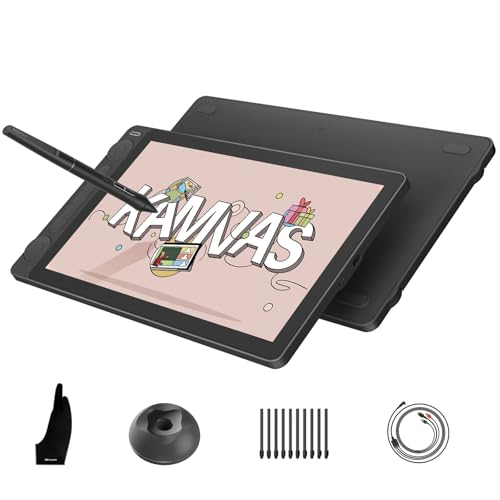
HUION Kamvas 13 (Gen 3) Drawing Tablet with Screen, 16K
The Details Behind The Selections
The 13.3-inch panel hits a sweet spot for desk work: big enough to see detail, small enough to share a desk with a keyboard. HUION’s Canvas Glass 2.0 uses full lamination, which means the glass sits flush against the display, cutting parallax so your line lands right under the nib. The anti-sparkle coating keeps glare down under typical office lighting.
One thing to know before ordering: this is a pen display, not a computer. It needs a laptop or desktop to run your art software, which is exactly what most working illustrators want anyway since their heavy apps live on the PC.
Points In Its Favor
- Fully laminated screen reduces the gap between stylus tip and cursor, so tracing feels natural rather than floaty.
- Anti-sparkle glass tames reflections near windows or bright lamps, a real help during long evening sessions.
- Dual dial hardware gives you quick control over brush size and zoom without diving into menus.
- 13.3 inches suits detailed character work while staying light enough to move between rooms.
Things To Consider
- No built-in apps or storage, so plan on owning a capable computer already.
- The textured coating can wear smooth over years of heavy use; a replacement protective sheet keeps the tooth fresh.
Key Specs
Who It Suits Best
Illustrators and designers who already own a decent PC or Mac and want an accurate, glare-controlled second screen for drawing.
Where Another Pick Suits Better
Anyone without a computer should look at the RubensTab T11 Pro instead, since it draws entirely on its own.
Pressure sensitivity is the headline here. The X3 Pro stylus reads 16K pressure levels, meaning the pen detects extremely fine gradations between a whisper-light touch and a firm press, which translates into smoother tapered lines in apps like Photoshop or Krita. For beginners, that headroom matters less today than it will in two years, when your hand control catches up to the hardware.
Compared with the HUION above, this one leans harder into controls: a red scroll wheel plus eight shortcut keys sit along the edge, and the bundled stand tilts the panel toward you. It also plays nicely across Windows, Mac, and Android, so one device can serve a desktop rig and a phone-based sketch session.
Useful Touches
- 16K pressure levels with a fast initial response keep long curves from breaking or lagging.
- Full-lamination with etched anti-glare glass gives crisp visuals and a paper-like drag under the nib.
- Red dial plus eight keys let you shrink brushes or undo without touching the keyboard.
- Works with Mac, PC, and Android, handy for artists splitting time between devices.
- Stand included, so the drawing angle is sorted out of the box.
Small Caveats
- Shortcut placement takes a week of muscle memory before it stops feeling fiddly.
- Still needs a host device; there’s no standalone mode here.
Made For
First-time digital artists who want pro-grade pen feel and physical shortcuts without paying flagship prices.
A Better Fit Elsewhere
Chromebook owners may find the XP-Pen Artist 13.3 Pro V2 single-cable version below more convenient to hook up.
This is the pick that frees you from the desk entirely. The T11 Pro runs as its own computer, so you can sketch on a train, in a lecture hall, or on the couch without dragging a laptop along. Its 10.1-inch IPS panel outputs full HD at 1920×1200, and wide viewing angles mean colors hold up even when the tablet sits flat on your knees.
The honest trade-off versus the tethered displays earlier on this list is raw software power. Standalone Android-class devices handle mobile art apps well, but they won’t run full desktop suites. For sketching, painting, and study work, though, most people find that plenty.
Strengths Worth Knowing
- Fully independent operation means no cables, no dongles, no computer required, ever.
- 1920×1200 resolution on a 10.1-inch IPS screen delivers sharp lines and consistent color off-axis.
- Slips into a backpack easily, making it a genuine travel companion rather than a desk fixture.
Points To Keep In Mind
- Mobile app ecosystems are narrower than desktop software, so check your must-have app exists on Android first.
- Owners commonly report charging habits matter; letting the battery drain fully every cycle shortens lifespan.
Right Fit For
Students and traveling artists who want a self-contained sketchbook they can use anywhere without a second device.
Consider Something Else When
Studio illustrators running Photoshop daily will get better results from the HUION Kamvas 13 (Gen 3) paired with their PC.
Eight inches sounds tiny until you realize the whole point: this thing disappears into a jacket pocket or a small crossbody bag. Frunsi runs Android 13 on board, so drawing apps launch straight from the home screen with no computer in sight. The 1200×800 display is modest by desktop standards but perfectly serviceable for gesture sketches, thumbnails, and practice drills.
Think of it as the little sibling of the RubensTab T11 Pro reviewed above. Same philosophy, smaller body, easier carry. You give up canvas room and resolution; you gain the kind of portability that means you actually bring it places.
Standout Benefits
- Android 13 gives a current, familiar interface and access to modern drawing apps out of the box.
- Truly pocketable footprint makes daily-carry sketching realistic, not just theoretical.
- Handles graphics apps on its own hardware, no pairing or drivers to fight with.
Worth Bearing In Mind
- The 1200×800 panel limits fine detail work compared with full-HD screens elsewhere on this list.
- Small canvas area can feel cramped for wide compositions or lettering practice.
- Screen cleaning matters more on a frequently handled device; a microfiber cloth in the case helps.
Quick Facts
Who Will Love This
Commuters and casual sketchers who value grab-and-go convenience over screen real estate.
Swap It Out When
You want a bigger standalone canvas: the PicassoTab X11 below adds three inches of drawing room.
What sets the A10 apart isn’t the hardware, it’s the landing experience. Simbans preloads five creative apps covering drawing, painting, animation, tutorials, and guided lessons, so a nervous beginner opens the box and starts making marks within minutes. There’s no driver install, no software shopping, no decision paralysis.
The bundle approach extends to extras like upgraded app versions included with purchase, which softens the usual “now what?” moment after unboxing. Compared with the bare-bones Frunsi T8, you’re trading some compactness for a friendlier on-ramp and a larger 10-inch canvas.
Useful Highlights
- Five preloaded creative apps remove setup friction completely, ideal for a first digital sketchbook.
- Bundled app upgrades add long-term value beyond the base software.
- Standalone design works anywhere in the house, from kitchen table to bedroom floor.
- 10-inch size balances portability against a usable drawing area.
A Few Limitations
- Spec details like pressure levels aren’t published prominently, so serious artists should verify pen performance expectations before committing.
- Preloaded apps skew toward learning; advanced users will likely replace them quickly.
Perfect Match For
Kids, teens, and absolute beginners who want everything ready to go on day one.
Not Your Match When
You need documented pro-level pen specs; the XPPen Artist 13.3 Pro V2 publishes its 16K pressure figures openly.
Cable clutter is the quiet enemy of a tidy desk, and this variant attacks it directly. A full-featured USB-C port carries video, data, and power over one cable to compatible Mac, Windows, Chromebook, and Android hosts, provided those devices support USB 3.1 with DisplayPort 1.2. An older-style HDMI path remains for machines that don’t qualify.
Underneath the cleaner connection sits the same 16K-pressure X3 Pro platform as item two, with the foldable stand included. The difference is purely about how it plugs in, and for anyone juggling a Chromebook alongside a desktop, that difference is worth real money in sanity.
Positive Takeaways
- Single-cable USB-C hookup eliminates the three-in-one spaghetti most pen displays demand.
- Broad compatibility spans PC, Mac, Chromebook, and Android hosts.
- Legacy HDMI option keeps older laptops in play.
- Foldable stand packs flat for occasional relocation.
Practical Considerations
- Single-cable mode requires specific USB 3.1 DP 1.2 support; older ports fall back to the bulkier cable.
- Verify your Chromebook model’s compatibility list before ordering, as support varies by manufacturer.
Details At A Glance
Who Should Grab It
Multi-device artists, especially Chromebook users, who want one clean cable and zero adapter hunting.
Look Elsewhere When
Your machine lacks USB-C video output; the standard XPPen Artist 13.3 Pro further down handles legacy setups gracefully.
The X11 takes the PicassoTab formula and stretches it: same standalone operation, same five preloaded creative apps spanning sketching through guided lessons, now on an 11-inch immersive panel. That extra inch sounds minor until you’re following along with a tutorial and trying to see both reference and canvas at once.
It slots naturally between the A10 and the RubensTab T11 Pro in this lineup. Bigger than the A10 for comfortable lesson-following, slightly different positioning than the T11 Pro depending on bundle preferences. Like its sibling, it includes bonus app upgrades aimed at keeping learners engaged past week one.
Noteworthy Benefits
- Eleven inches of canvas makes tutorial-following and composition work noticeably easier than smaller slates.
- Preloaded apps cover sketching, painting, animation, and structured lessons in one package.
- No computer dependency, so it lives happily on a dorm desk or kitchen counter.
Softer Spots
- Larger body means it’s bag-friendly rather than pocket-friendly; plan storage accordingly.
- Published spec depth is thin, so power users may want to confirm pen behavior against their needs.
Built With In Mind
Art students and hobbyists learning at home who want room to grow without leaving the standalone world.
Another Choice May Suit
Maximum portability seekers should stick with the Frunsi T8, whose eight-inch frame travels lighter.
This is the established workhorse of XP-Pen’s midrange, and its longevity in the market says something. The signature trick is tilt support up to 60 degrees: tilt the pen the way you’d angle a pencil for shading, and the stroke responds accordingly, no brush reconfiguration needed. Animators and comic artists who shade constantly tend to notice the difference within a session.
Against the newer V2 models earlier in this list, you lose the 16K pressure ceiling and the red dial refinements, but the core drawing experience, full lamination included, remains genuinely competitive. The included 3-in-1 cable covers HDMI-era computers without fuss.
What It Does Well
- 60-degree tilt response lets you shade by angling the pen, just like traditional media.
- Full lamination minimizes the gap between glass and display for accurate stroke placement.
- Included 3-in-1 cable connects straight to most PCs and laptops.
- Long track record means driver stability questions are well answered by now.
Trade Offs To Consider
- Older pressure spec than the V2 siblings, which matters mostly to detail obsessives.
- The 3-in-1 cable adds desk clutter compared with single-cable USB-C designs.
Core Details
Whose Shelf It Belongs On
Intermediate animators and illustrators who shade heavily and value proven reliability over newest-generation specs.
Reach For A Different Pick When
You want maximum pressure resolution; step up to the XPPen Artist 13.3 Pro V2 with its 16K pen tech.
Weight tells the story here: 1.58 pounds. Slip this into a laptop sleeve beside a thin notebook and you’ve got a mobile studio for café sessions or train commutes, assuming your destination has a computer waiting. The 11.9-inch screen trims bezels by roughly a third versus prior generations, squeezing more drawing area into the same footprint.
The dual X-Dial wheels are the clever bit. One adjusts brush size, the other zooms the canvas, and XP-Pen claims meaningful time savings over menu-diving. Eight customizable keys round out the controls while guards prevent accidental presses in transit.
Features That Help
- At 1.58 pounds, it’s the lightest pen display on this list, built for bags rather than bolted desks.
- Dual X-Dial wheels put brush size and zoom under your thumb instantly.
- Narrower bezels deliver more active drawing area per inch of body.
- Eight customizable keys speed up repetitive actions like undo and layer switching.
Details To Watch
- Like all pen displays here, it requires a connected computer; there’s no battery-powered drawing mode.
- Smaller 11.9-inch canvas may feel tight for sprawling poster layouts.
The Right Fit
Digital nomads and students who sketch away from home but finish work on a proper computer.
Skip It When
You never leave the desk; the larger-feeling HUION Kamvas 13 (Gen 3) offers similar accuracy with dial controls too.
Where the black dual-dial Kamvas earlier in this list emphasizes ergonomics, this Gen 3 variant pushes pen technology forward with 16K pressure levels via PenTech 4.0. In plain terms, the stylus distinguishes thousands of subtle force gradations, so hair-thin tapering and soft shading come out closer to what your hand intended.
The surface treatment deserves equal billing. Nano-etched Canvas Glass 2.0 diffuses glare and image noise while adding a paper-like tooth, and full lamination keeps parallax negligible. Line artists who live at high zoom levels are the natural audience here.
Real-World Strengths
- 16K pressure sensitivity captures feather-light touches that lesser pens flatten out.
- Nano-etched glass cuts sparkle and glare under strong overhead lighting.
- Paper-textured finish provides gentle friction many artists prefer for control.
- Full lamination aligns the cursor tightly with the nib position.
Factors To Consider
- Requires a connected computer or laptop; standalone fans should pivot to the PicassoTab options.
- Textured surfaces gradually polish smooth with heavy use; replacement sheets restore the feel cheaply.
Technical Highlights
Best Suited To
Detail-focused line artists and inkers working at a desk who want top-tier pen feel in a 13-inch format.
Where A Sibling Pick Shines
Ergonomics-first users who prefer physical dials over maximum pressure specs may favor the dual-dial Kamvas 13 (Gen 3) at number one.
What Matters Most Before Choosing Artist Drawing Tablets
Standalone Or Tethered
This single question shapes everything else. Tethered pen displays borrow their computer’s muscle, so Photoshop, Clip Studio Paint, and heavy canvases run without compromise, but you’re chained to a desk. Standalone tablets trade that power for freedom: draw anywhere, no cables, no boot sequence. Match the choice to where you actually create, not where you wish you did.
Screen Size And Your Hands
A 13-inch display suits detailed illustration; anything under 10 inches favors quick sketches and note-taking. Measure your typical drawing posture too. Flat-on-desk work forgives smaller panels, while lap drawing benefits from wider viewing angles on IPS screens.
Pen Feel Over Paper Specs
Pressure numbers sell tablets, but surface texture and lamination shape daily satisfaction more. Fully laminated screens eliminate the hollow gap between glass and image, and etched coatings add the slight resistance that mimics pencil on paper. Prioritize these over headline figures.
Ports And Compatibility
Check your computer’s outputs before buying any tethered display. Single-cable USB-C models need specific port standards, while 3-in-1 cables suit older machines. Five minutes of homework prevents a returns headache.
Key Considerations Across These Picks
Traps First Timers Fall Into
The classic error is buying a tethered pen display without owning a suitable computer, then discovering the tablet won’t run alone. The mirror mistake is choosing a standalone slate expecting desktop-software performance. Read the connection requirements twice, and confirm your favorite art app exists on the device’s platform before checkout.
What Separates Premium From Basic
Higher-tier models spend their extra cost on pen internals, glass treatments, and build quality rather than gimmicks. Sixteen-thousand-level pressure sensing, nano-etched anti-glare surfaces, and full lamination all cost more to manufacture, and all show up in daily comfort. Casual doodlers won’t feel the gap; professionals logging daily hours will.
Frequently Asked Questions
Do drawing tablets with screens need a computer?
Tethered pen displays do, since they act as a second monitor driven by your PC or laptop. Standalone models contain their own processor and operating system, so they work entirely on their own.
Can I use these tablets with Android phones?
Several picks here, including the XPPen Artist 13.3 Pro V2 variants, support Android connections. Verify your specific phone supports the required video-output standard before purchasing.
Is higher pressure sensitivity always better?
Not necessarily. Beyond a certain point, most artists can’t distinguish additional levels during normal drawing. Surface texture, lamination, and driver stability influence feel more noticeably day to day.
How durable are the textured screen surfaces?
Etched coatings gradually smooth with years of heavy nib contact, a commonly reported pattern. Replacement protective sheets are inexpensive and restore the original paper-like drag.
Which size works best for beginners?
Ten to thirteen inches covers most learning needs comfortably. Smaller slates prioritize portability, while larger panels mainly benefit professional layout and illustration work.
Closing Remarks
Every tablet on this list solves a slightly different problem, and that’s the point. Start with where you draw, then let the specs follow. Whether you land on a tethered display like the HUION Kamvas 13 (Gen 3) or a self-contained slate like the RubensTab T11 Pro, the best choice is simply the one that matches your actual routine. Happy sketching.
